
Manage and switch environments
Comparing environments
Section titled “Comparing environments”An environment opens on its own page with only its variables. With two or more environments, the page also has a Matrix view: every variable of the workspace as a row, environments as columns, the one in use highlighted. It answers “what is baseUrl in staging?” and “which environment is missing a token?” without opening each environment.
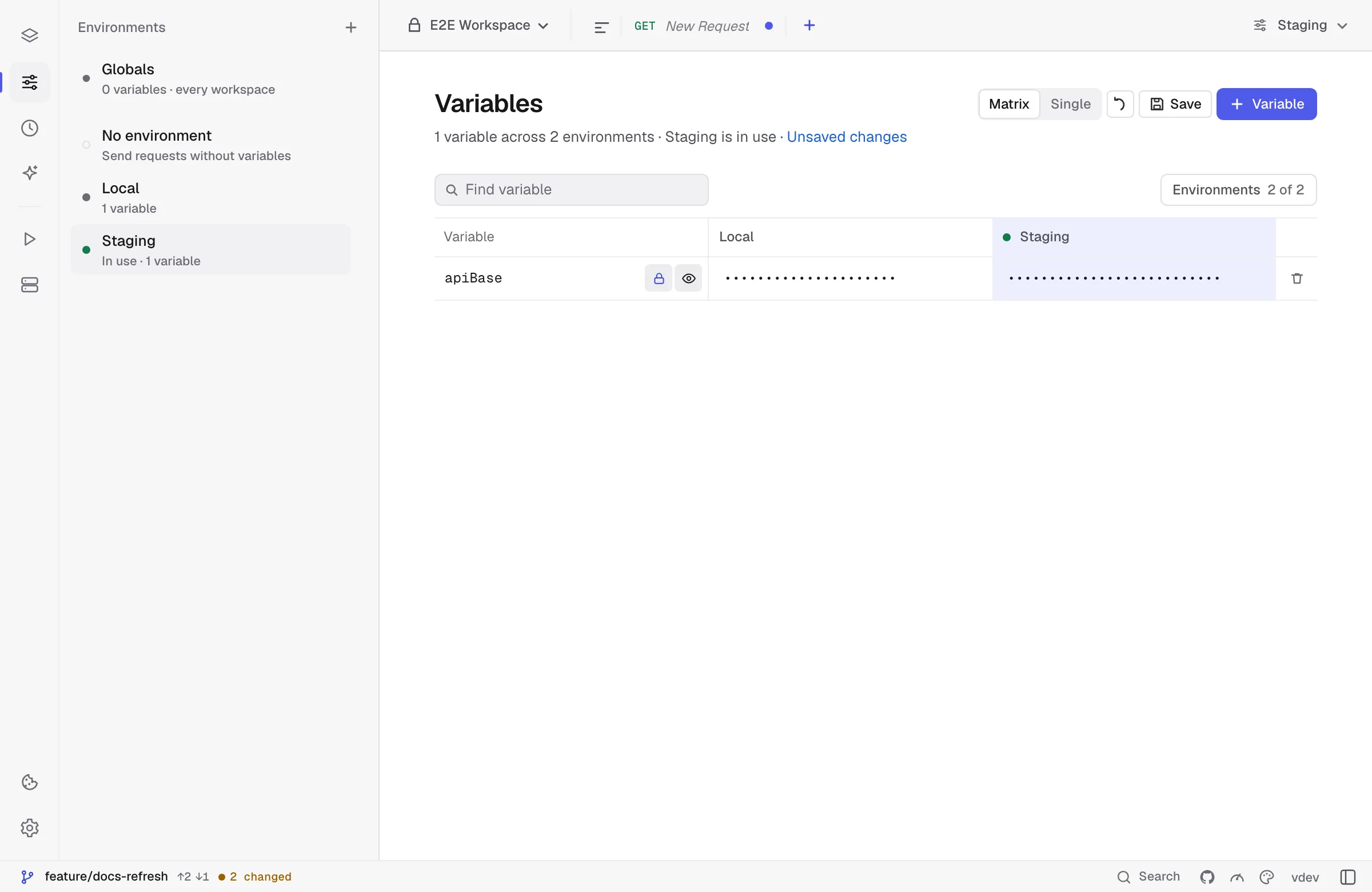
- Type in a cell to change that environment’s value. A cell that says Not set has no such variable in that environment; click it to set one.
- Rename a variable in its row and it is renamed in every environment.
- The lock marks a variable secret everywhere — masking it in one environment and showing it in another would leak it anyway. The eye shows the values while you look.
- + Variable adds a variable to every environment at once, empty; the bin removes it from all of them.
- × in a cell removes the value from that environment only, and the cell goes back to Not set or to the inherited value. It shows only while another environment still sets the variable — to delete the last one, use the bin.
- The Matrix shows the environment in use and up to four more. Environments above the table picks which ones to compare, with a search for long lists; Show all adds every environment and Reset goes back to the first five. Kurlo remembers the choice for each workspace.
- The variable names stay on the left while you scroll across the columns.
- Click an environment’s name to open it on its own. Single switches back to one environment at a time; Kurlo remembers which view you used.
Inheriting from another environment
Section titled “Inheriting from another environment”Environments often share most of their variables and differ in a few: staging and production use the same paths and client ID but different hosts and tokens. Instead of copying the shared ones into each, keep them in one environment, say Base, and let the others inherit from it.
Open an environment and pick its parent under Inherits from. A variable the environment does not set itself is taken from its parent, and from the parent’s parent after that; the nearest one that sets it wins. Requests, the collection runner, load tests, the CLI and kurlo mcp all resolve variables this way.
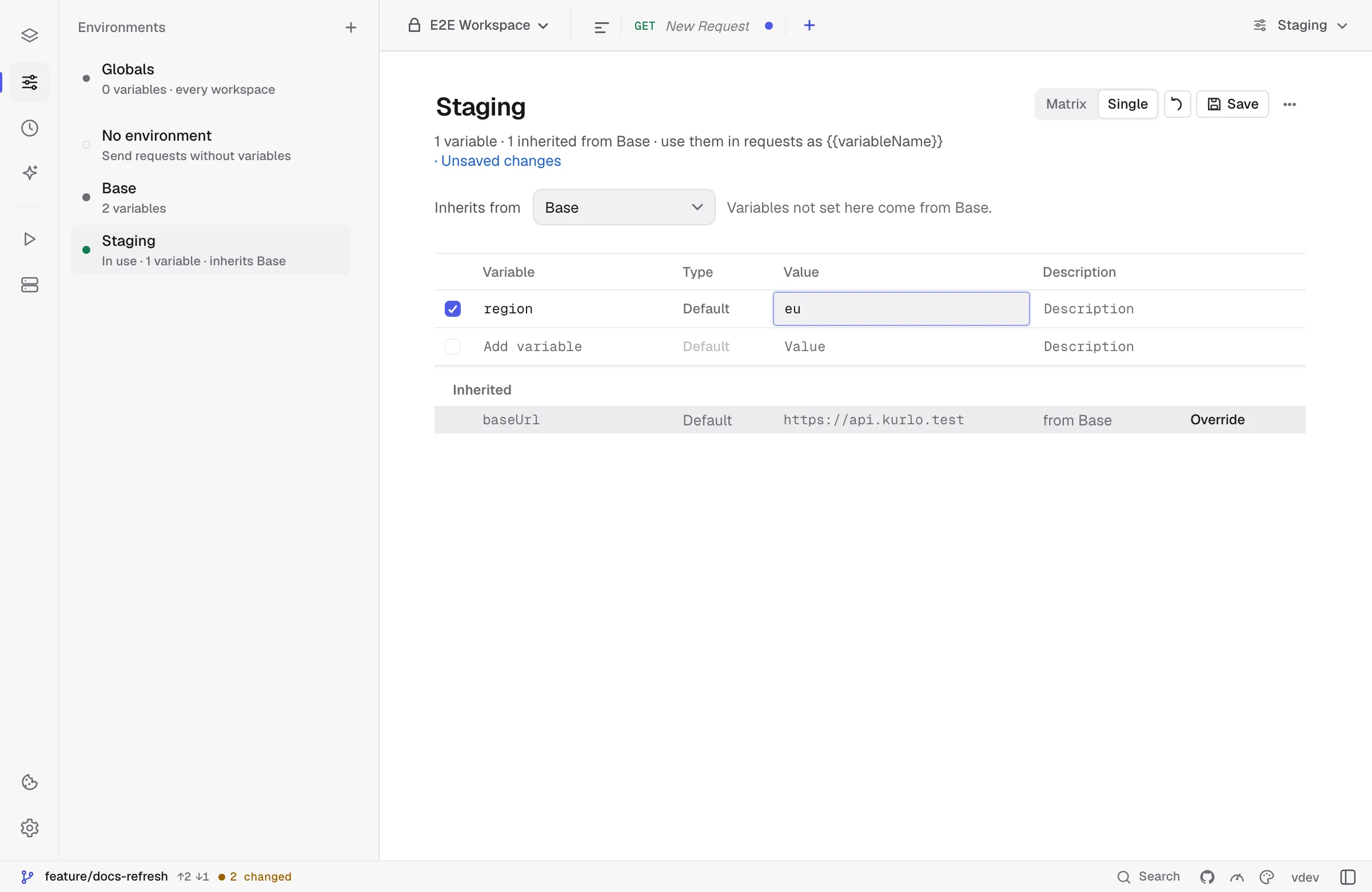
- The Inherited list under the variables shows what comes from the parent and from where. Override copies a value into this environment so you can change it there.
- In the Matrix, a cell the environment does not set shows the inherited value in grey with the name of the environment it comes from. Click it to set a value of its own. The column header shows the parent.
- A script that calls
pm.environment.setwrites to the environment in use, never to its parent.pm.environment.unsetremoves the environment’s own value, so the inherited one applies again. - + Variable adds the new variable only to environments that inherit from nothing; the others pick it up from them.
- An environment under a protected one is protected too.
- Deleting a parent moves the environments that inherited from it up to the parent’s own parent, or leaves them on their own.
- Postman has no inheritance, so Export… writes the environment with the inherited values included.
The parent is saved as parentId in the environment’s file.
Importing a .env file
Section titled “Importing a .env file”To copy variables from an existing .env file, open an environment and choose Import .env in its ••• menu. The file picker shows hidden files, so .env and .env.local are listed; pick one from any folder.
Each KEY=value line becomes a variable in the environment, and a variable that already exists takes the value from the file. export prefixes, # comments and quoted values are understood. The values are copied once: later edits to the file do not reach Kurlo, so import it again after changing it. Mark the imported tokens and passwords as Secret so they stay out of the workspace files.
Switching environments
Section titled “Switching environments”Use the environment switcher in the title bar. The active environment is per-workspace — switching to a different workspace remembers its last-used environment.
When a workspace has more than eight environments, the switcher opens with a search field: type part of a name and press Enter to switch to the first match. The list scrolls, and Manage environments stays at the bottom.