
Build collection documentation
Generate a portable HTML reference from a Kurlo collection and open it offline or publish it to a static host.
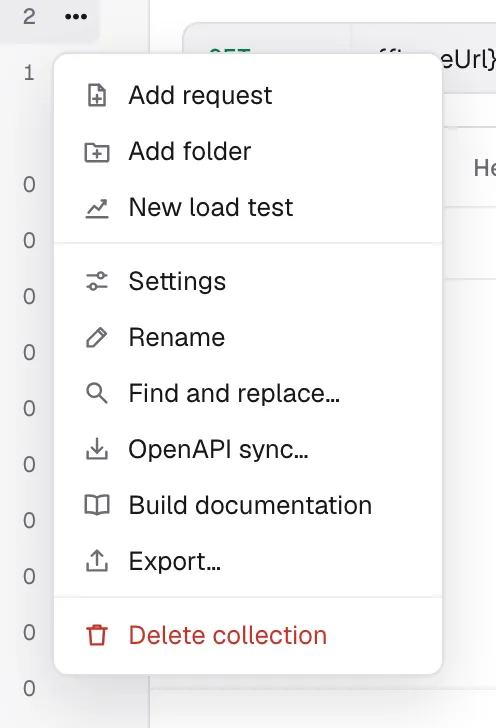
In the sidebar, open the collection’s ⋯ menu and choose Build documentation. In Generate documentation, keep All requests or choose Select requests. Search by name, method or URL, or narrow the list with the folder picker, then check individual requests or use Select visible. Click Generate and choose a folder and filename in the save dialog. Kurlo suggests <collection>-documentation.html and opens the saved file in your default browser. You can also use ⋯ on the collection overview. Save any edits you want to include before building.
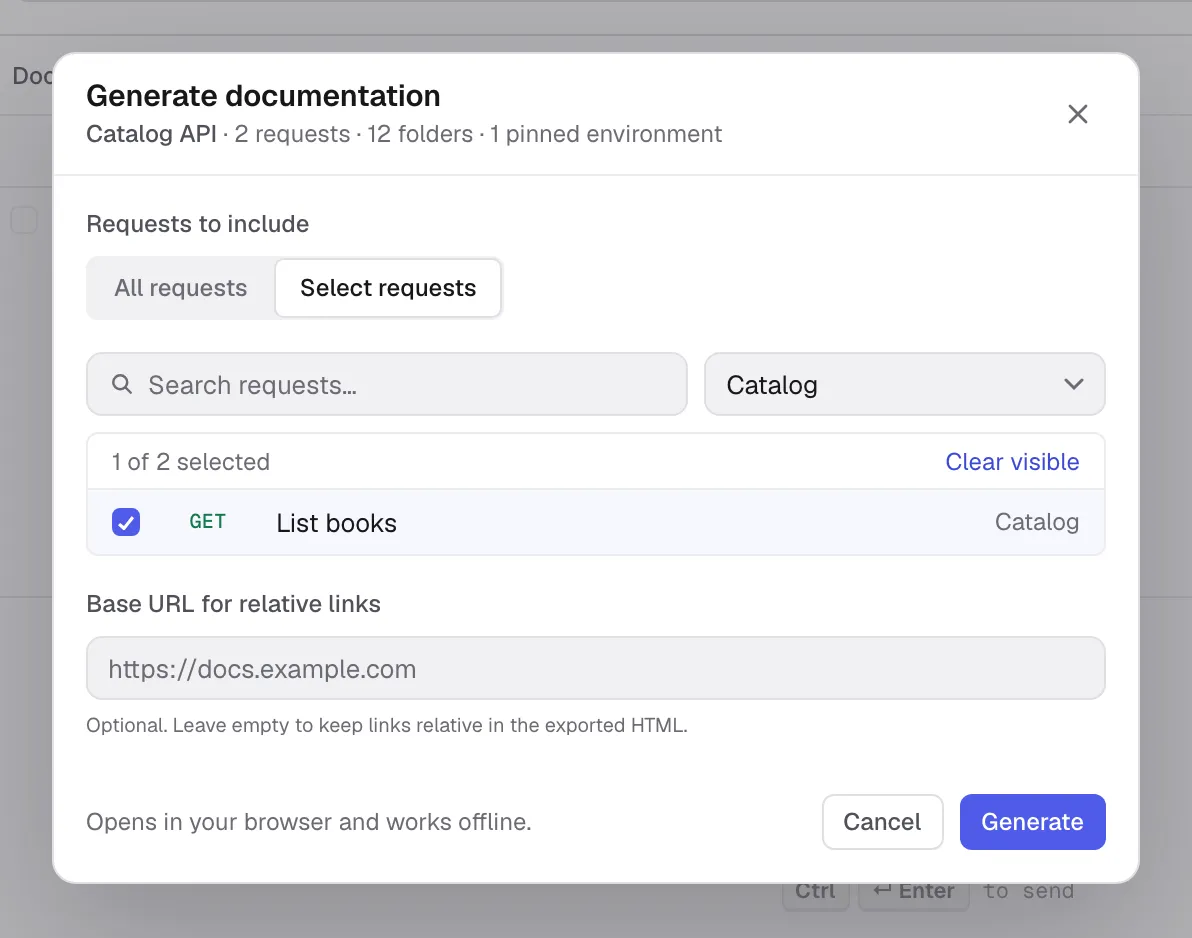
If the collection description, selected request notes, or their saved example notes contain relative links such as /guide/auth, the dialog shows Base URL for relative links. Enter the address of the site hosting those pages. The export uses it to turn relative links into full URLs. You can also put full URLs directly in your notes. If you publish the export with the linked pages on the same site, you can keep the links relative by leaving Base URL for relative links empty.
The contents follow your collection’s folders. HTTP requests show the saved address, authorization type, enabled parameters and headers with their descriptions, and body. Collection descriptions, request documentation, and example notes render as Markdown. Long request documentation is collapsed; choose Show more to read all of it. Expand a folder in the sidebar to browse its requests, or press / to search by name, folder, method or URL. Use All methods to filter the results by method or protocol. Use the arrow keys and Enter to open a result.
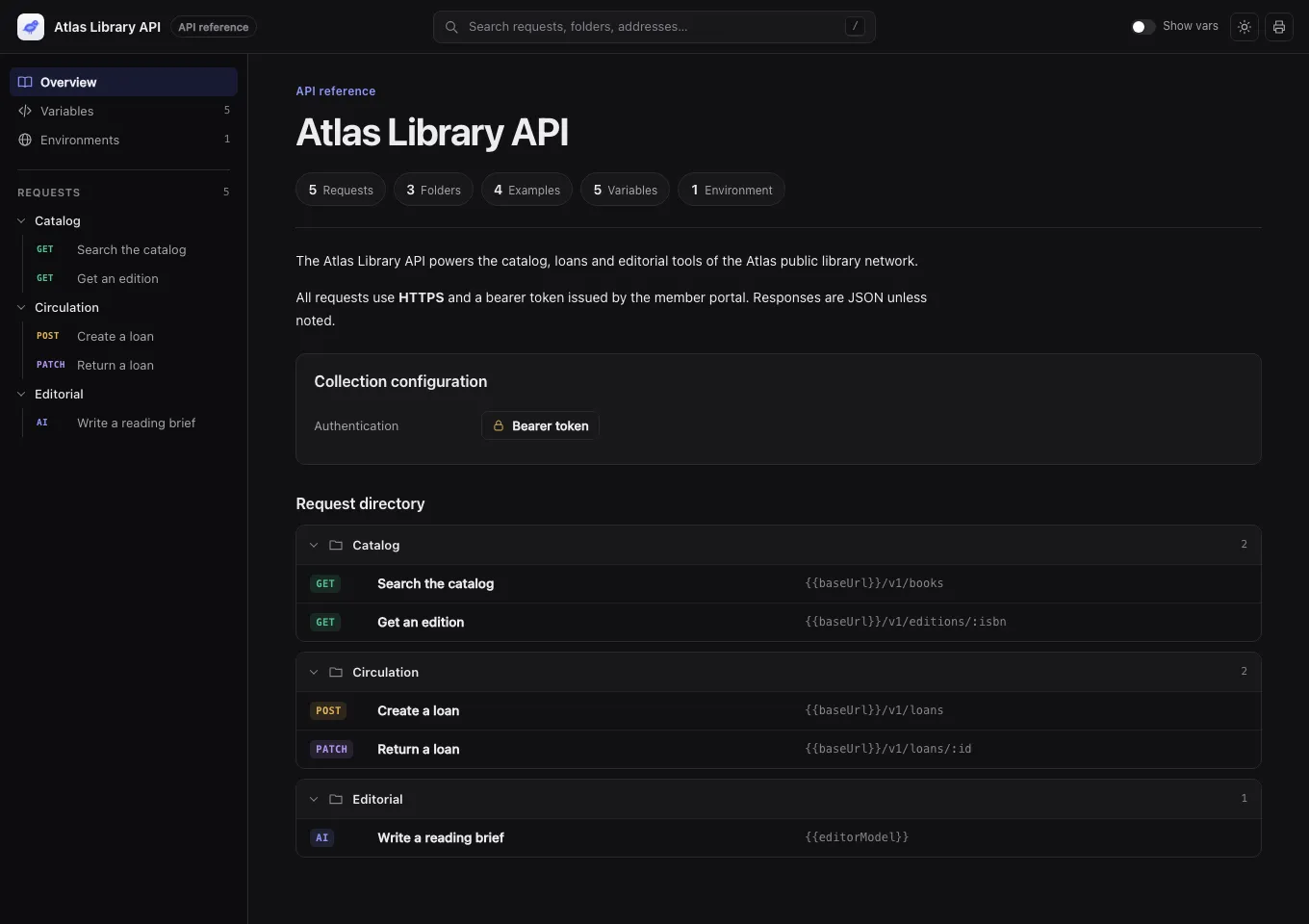
On an endpoint page, the request address stays at the top while you scroll. Use the links under it to jump to documentation, request details, code or examples. Use Copy link to link directly to the endpoint.
For supported HTTP requests, Code shows the request as cURL, JavaScript (fetch) and Python (requests). Choose a tab and use the copy button beside it. The reference remembers your choice for every request. Snippets keep variable placeholders. Bearer token, OAuth 2.0 and API key authorization appear as a header or query parameter with the variable that holds the credential, or with •••• when the value is not a variable. Fill in the placeholders before running the code. The copy buttons beside addresses and other code blocks copy what is displayed.
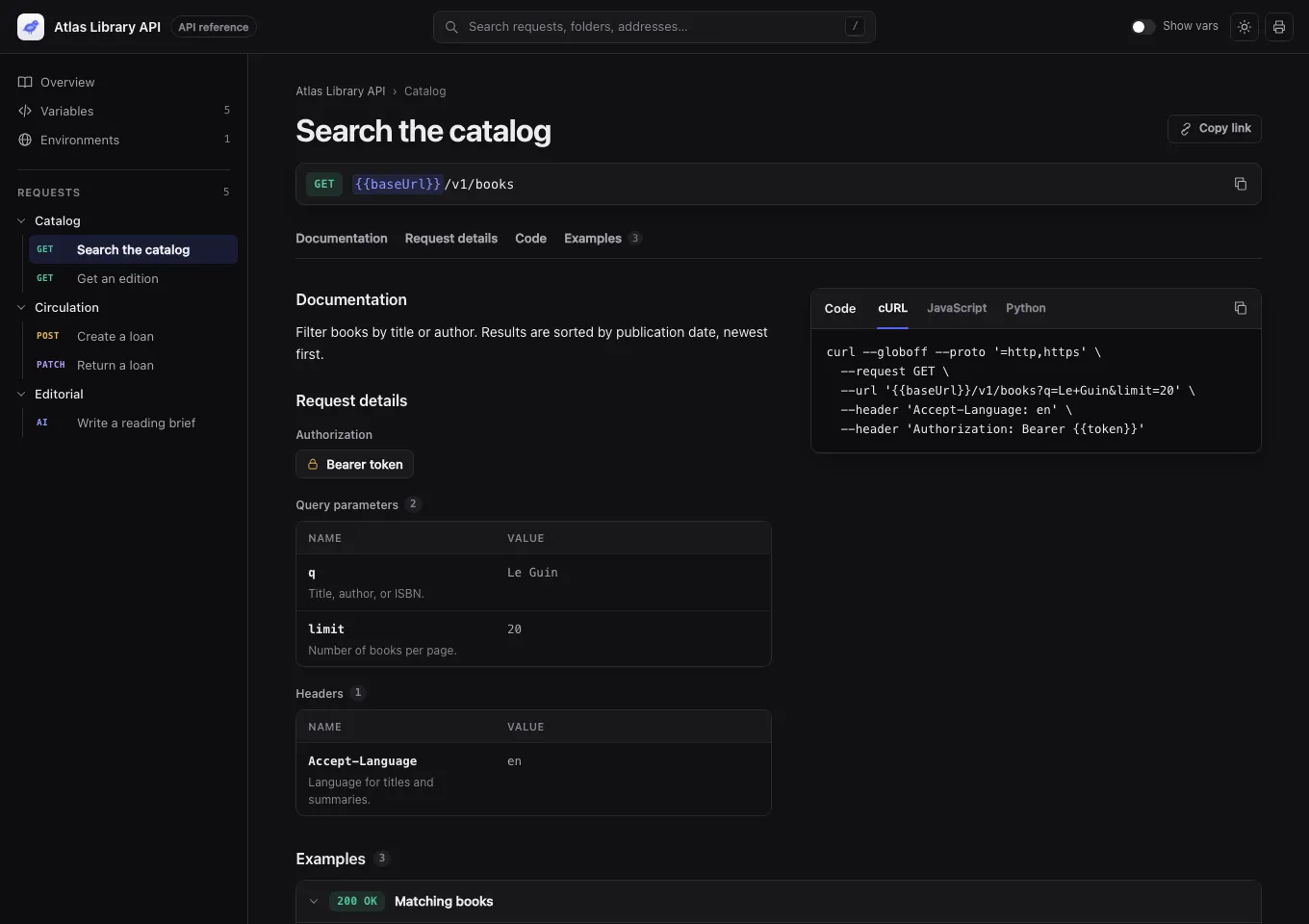
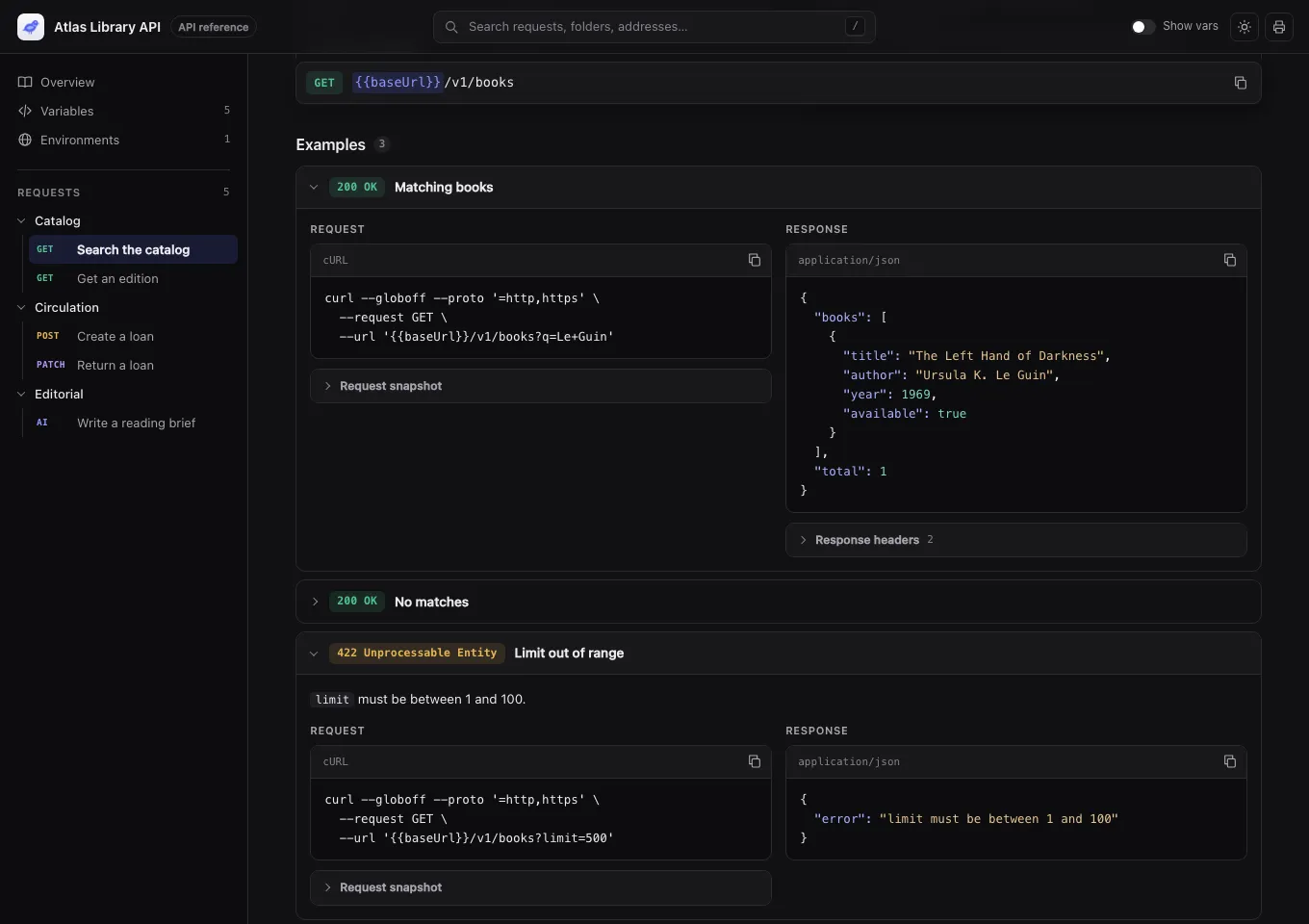
Examples lists the request’s saved examples with their status codes. The first one is open. Expand any example to see its notes, the saved request as cURL and the response body side by side. Expand Request snapshot or Response headers for more detail. On smaller screens the request and response are stacked.
The reference follows your browser’s color scheme on first open. Change it in the toolbar, or use the printer button to print the whole collection with its examples. Printed requests show the original variable placeholders.
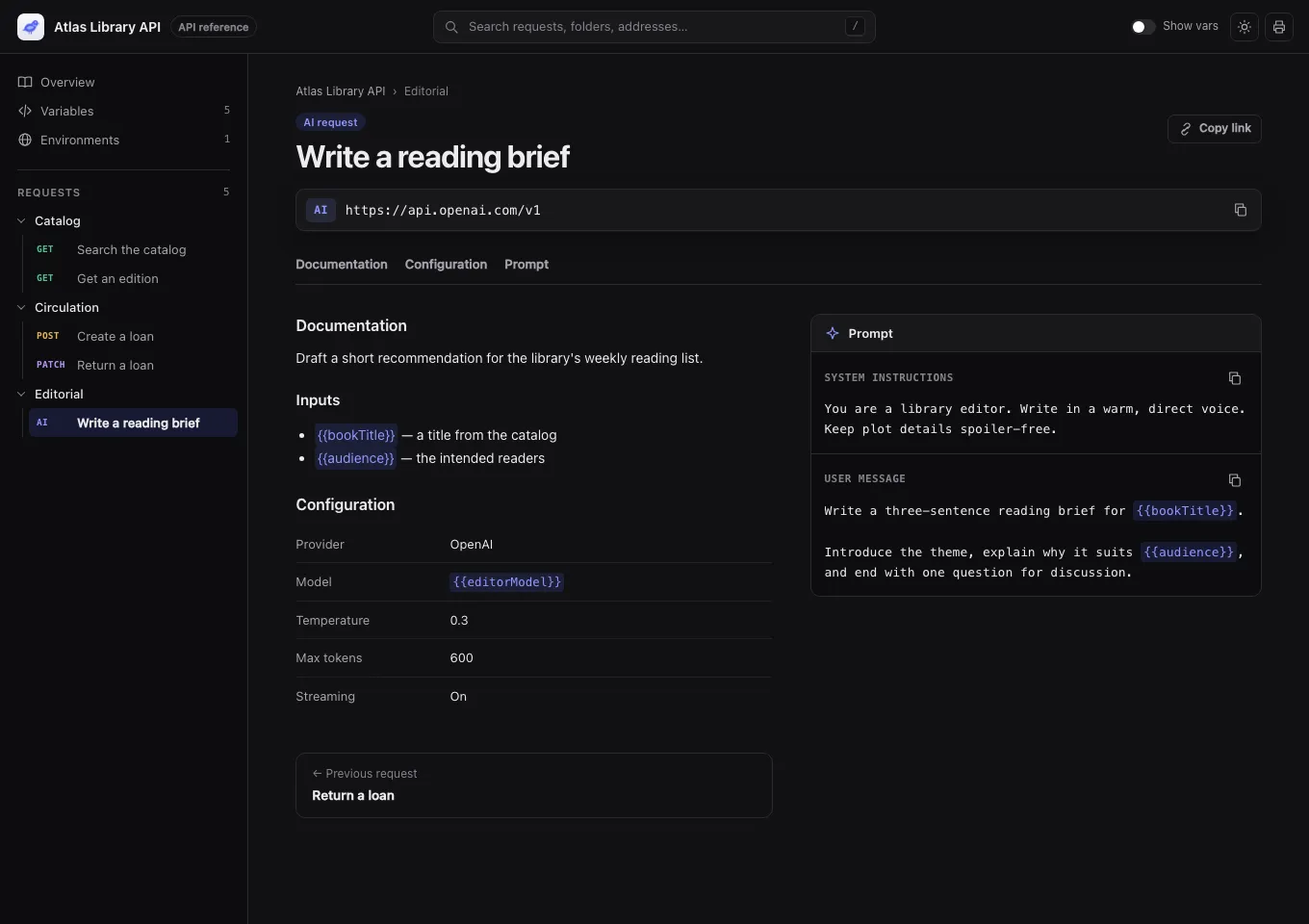
AI requests show their saved provider, model and generation settings. Use the copy buttons in Prompt to copy the system instructions or user message, including line breaks and variable references.
Build a file to share
Section titled “Build a file to share”kurlo docs build "Orders API" --workspace ./api --out ./public/referencePoint --workspace at the directory containing kurlo.yml. It defaults to the current directory. Select the collection by name or ID. With a single collection, you can omit the selector.
Pass a filename such as --out ./public/orders.html to choose its name. A directory produces index.html inside it. The command prints the absolute path to the saved file. The file includes its styles and works offline. Send it as a file or put it on a static host. The default output is ./kurlo-docs/index.html. Rebuilding to the same destination replaces that HTML file. Add --open to open it after building. Use --docs-base-url https://docs.example.com to resolve relative links in the notes.
Read variable values
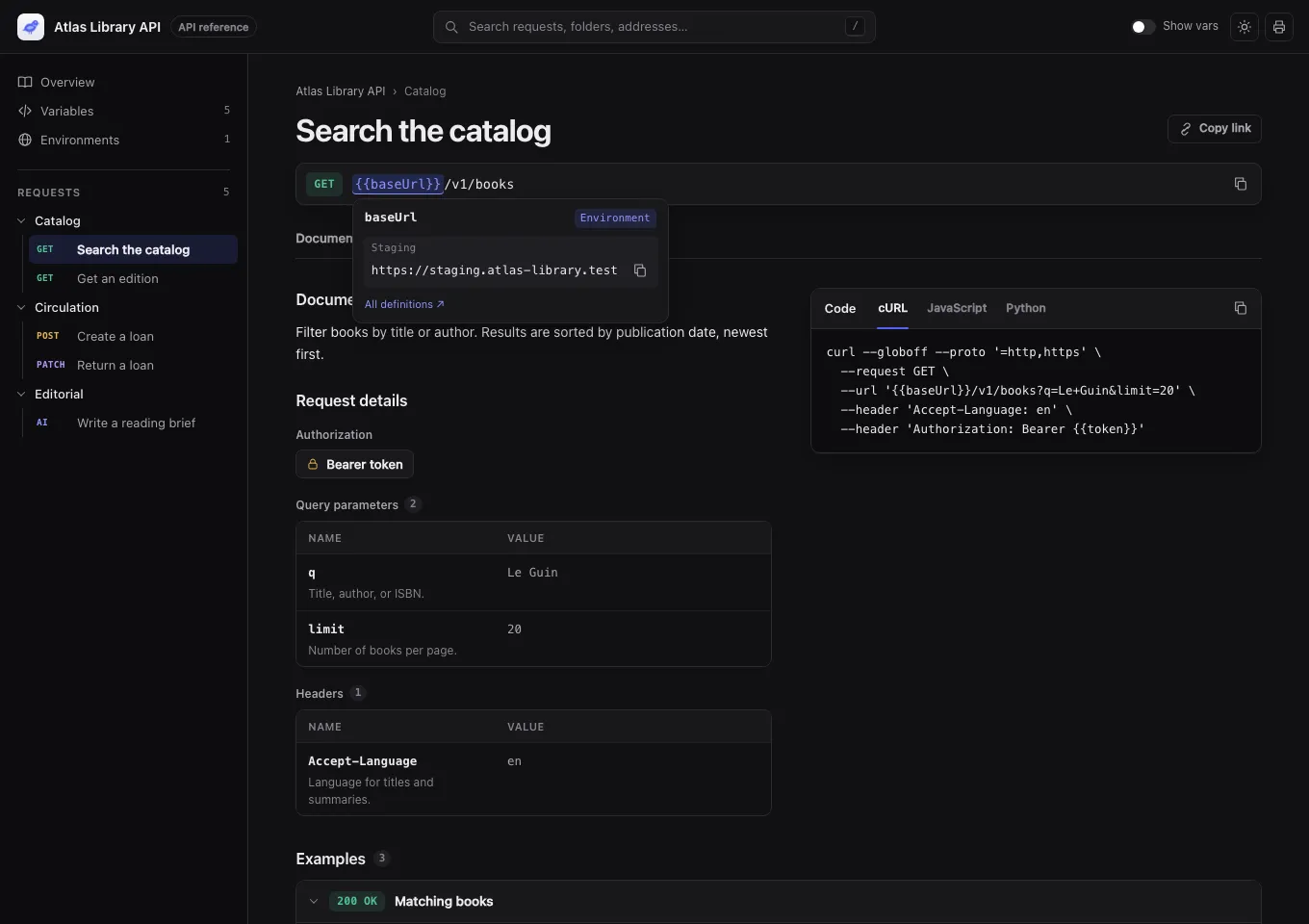
Section titled “Read variable values”Hover over a highlighted variable in a request, tap it, or focus it with the keyboard. The popover shows its value and scope and lets you copy it. Request values take precedence over environment, collection and global values. Disabled definitions are skipped. When multiple environments supply a value, their names appear alongside each value. Use the environment selector to choose one.
Turn on Show vars to read addresses, request bodies and examples with their values filled in. The copy buttons copy the text as displayed. Turn it off to copy the original template.
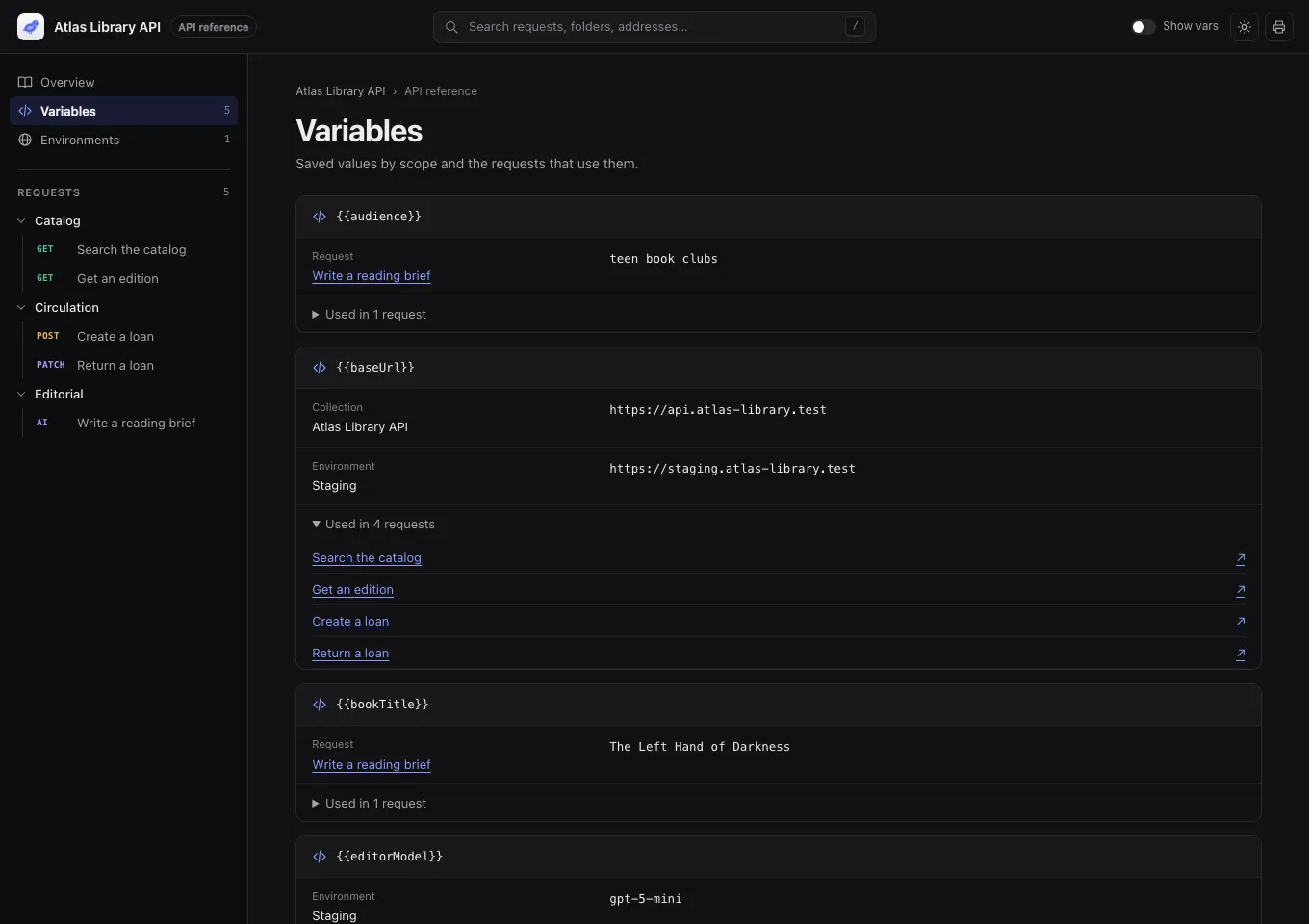
Open Variables to see each name, its saved values, descriptions and scopes. Repeated request definitions share a row. Expand the definition count to see the requests with that value. Expand Used in for links to requests. Collection and request definitions appear even when unused. Disabled rows, empty strings and references without a saved definition have separate labels.
Environments shows values for each environment pinned to the collection, including inherited values. With no pins, Variables includes matching definitions from environments in the same workspace. The desktop export also includes matching global variables. The Variables directory preserves saved values, so a URL such as {{origin}}/v1 keeps its template.
Secret rows, credential fields and values from protected environments are hidden. Review ordinary variable values, notes, prompts, request bodies and captured examples before sharing the HTML.