
MCP servers and Git
MCP servers for the agent
Section titled “MCP servers for the agent”Settings → AI → MCP servers for the agent connects other MCP servers, such as GitHub, Jira, a database or your own service, to the Kurlo agent. Add an HTTP server with its URL and headers, or a Local command that Kurlo starts, such as npx with -y and @modelcontextprotocol/server-github, with its environment variables. Test connects and lists the tools, and says whether the server also has resources and prompts. Header and environment values are encrypted on this computer; to keep a saved value when you edit a server, leave its line as NAME=.
For an HTTP server that asks you to sign in, such as Linear or Notion, set Sign-in to OAuth sign-in and save. Sign in in the list reads the server’s metadata to find its authorization server, registers Kurlo there and opens the sign-in page in your browser; when you approve, the server shows Signed in. If the authorization server does not let apps register themselves, create an app there and enter its Client ID. Kurlo uses PKCE and asks for a token for that server only. The tokens are encrypted on this computer and renewed when they expire; when that fails, the agent tells you to sign in again. Sign out forgets them.
Each turn the agent sees the tools of every server that is on, named server__tool. Every call waits for your approval, showing the server, the tool and its arguments, unless you choose Allow for this chat or an approved plan lists it as server.tool. A server that offers resources or prompts also gets server__resources_list, server__resource_read, server__prompts_list and server__prompt_get, so the agent can read its documents or fill in its prompt templates. These only read, so they run without asking. Answers from these servers are treated as data, not instructions. Turn off keeps a server without offering its tools. Calls appear in the activity log under the server and tool name.
Git works on the whole folder, not on one workspace: when a folder holds several workspaces, a branch or commit made from one chat applies to all of them, and Chat details → Git says so. When the workspace is in a Git repository, the agent can check git status and the diff of the workspace files, create a branch, commit and push. Creating a branch and committing wait for your approval; a commit card lists every file with its diff and a Commit button. A push asks every time, even after Allow for this chat, and the agent pushes only when you ask it to. Only Kurlo workspace files are ever committed: other files in the repository are left alone.
To keep the agent’s work apart from yours, turn on Branch in the message box before you send. Kurlo then commits each change you approve to a branch of its own, named after the chat, such as kurlo-agent/cover-orders-1a2b3c. The branch is created from the current commit on the first change and the workspace switches to it, so uncommitted edits you had in a file the agent changes go into that commit too. A change you reject is not committed. Chat details → Git shows the current branch and the agent branch.
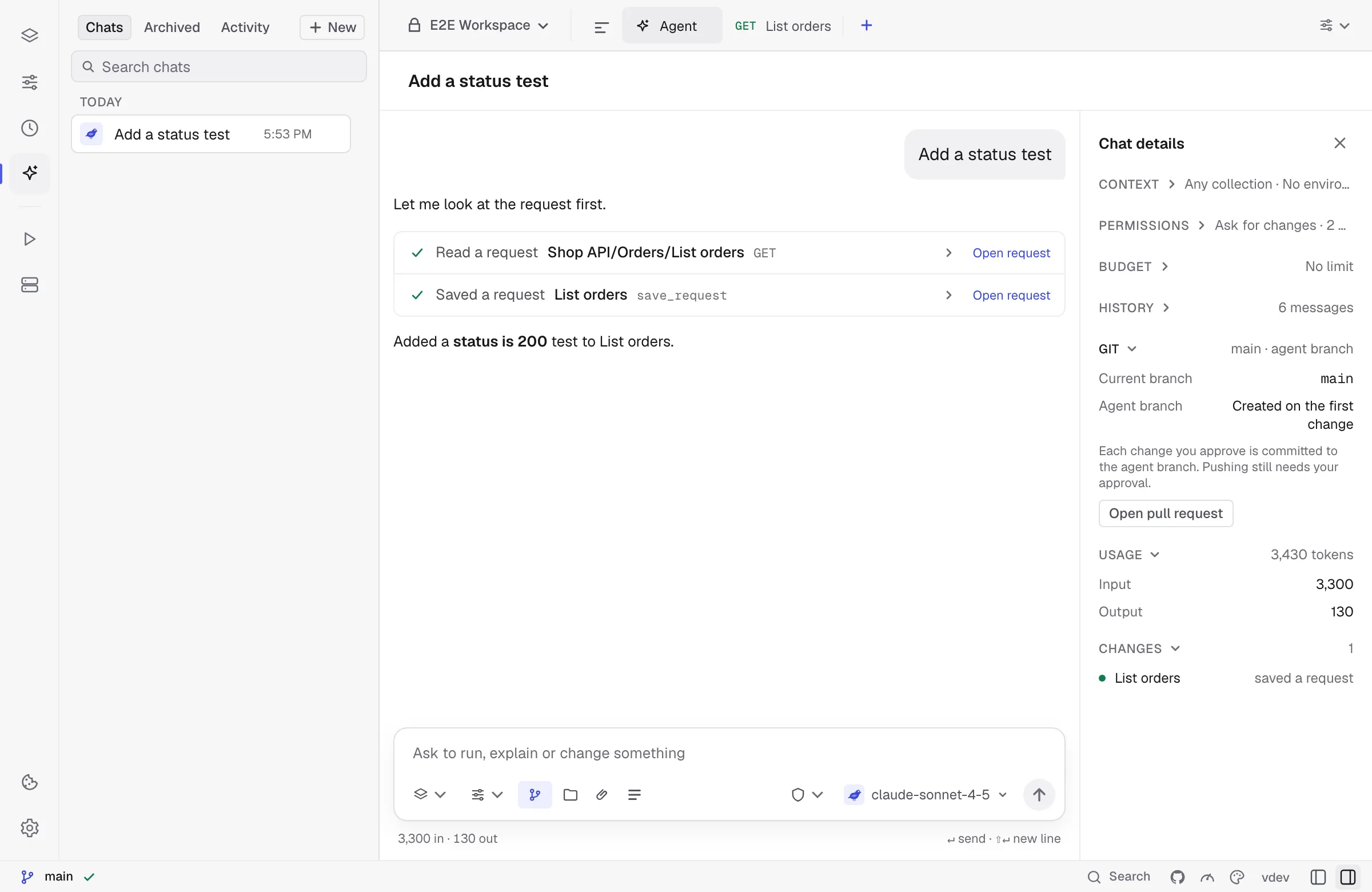
Open pull request in Chat details opens the page that starts a pull request for the current branch on GitHub, or a merge request on GitLab and Bitbucket, against the remote’s default branch. Push the branch first. Kurlo builds the link from the remote URL and sends nothing; for other hosts it says it cannot build one.