
Your first request
Send and save a request, set a base URL through an environment, and check the response with a test.
This walkthrough takes about five minutes. By the end you’ll have:
- A workspace with one collection.
- A saved
GETrequest against a public API. - An environment with a base URL variable.
- A test script asserting the response.
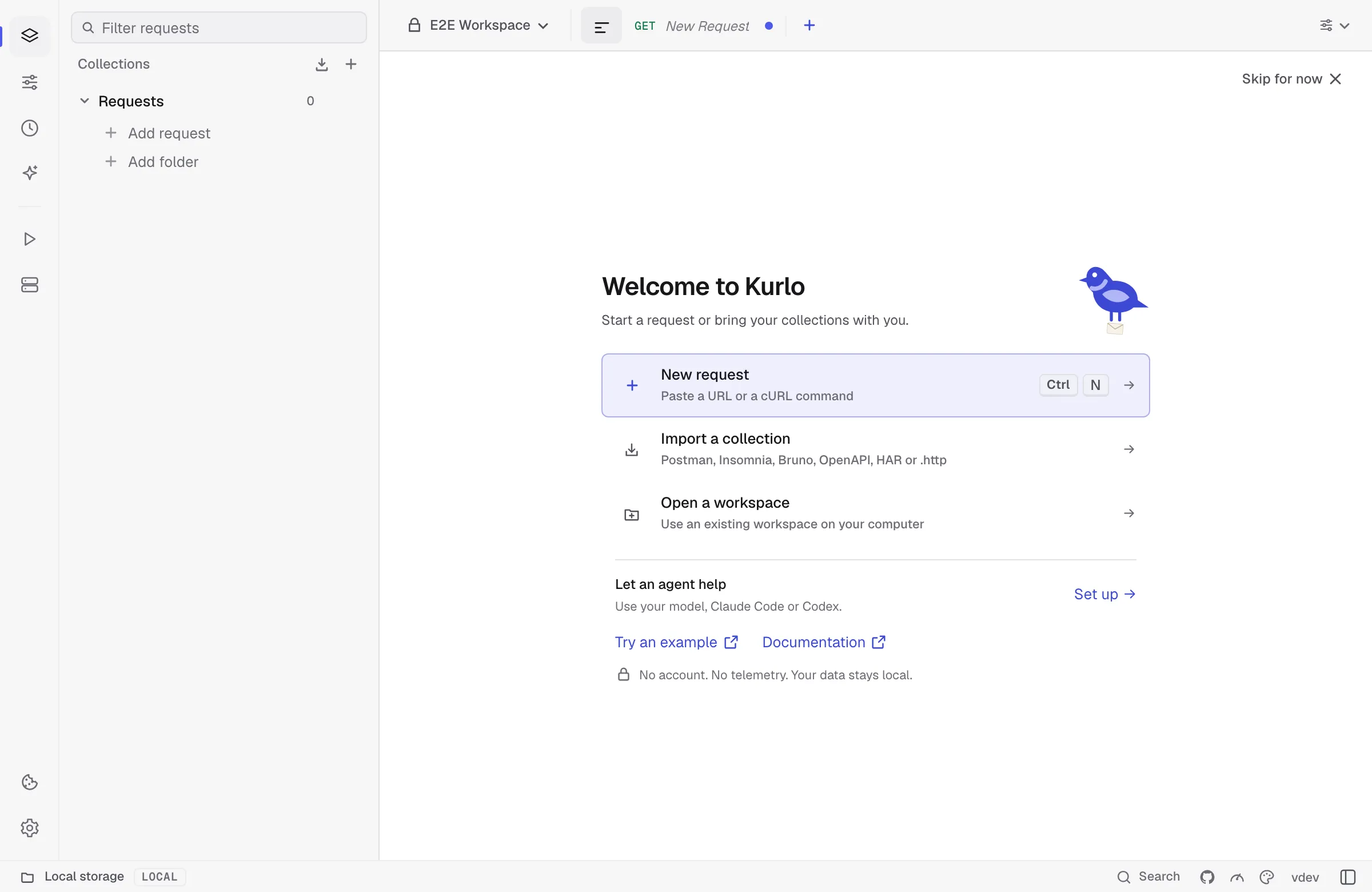
On a new profile, the Welcome to Kurlo screen offers New request, Import a collection, and Open a workspace. Try an example opens a GET https://httpbin.org/get draft. Click Send when you’re ready. Choose Skip for now to dismiss the screen, or reopen it later with Cmd/Ctrl K → Welcome screen.
1. Create a workspace
Section titled “1. Create a workspace”Workspaces are top-level containers — think one per project or per client. On first launch Kurlo creates a Default workspace; you can rename it or add more from the workspace switcher in the top-left.
2. Send an ad-hoc request
Section titled “2. Send an ad-hoc request”- Press
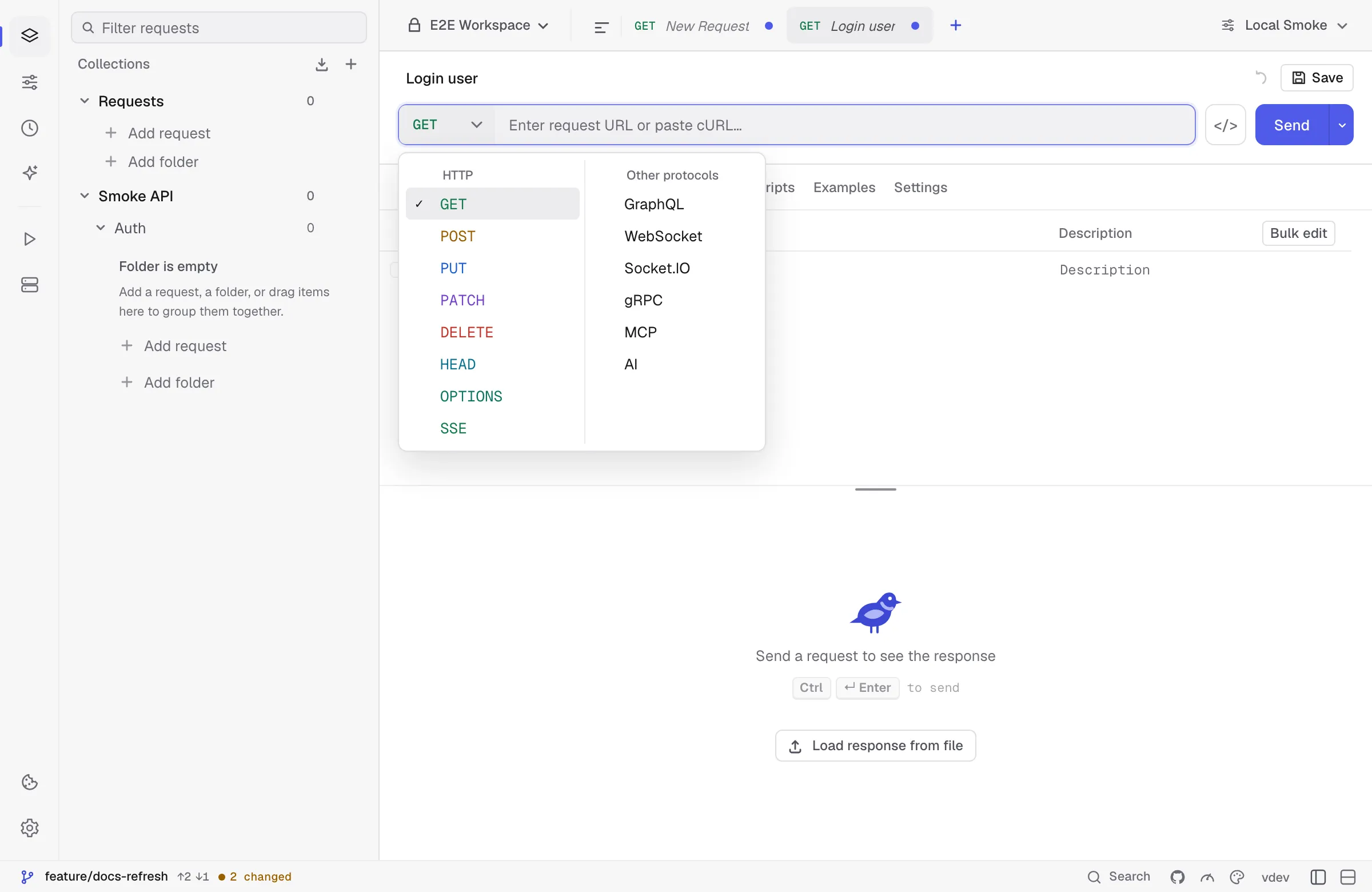
Cmd/Ctrl Nor click+in the tab bar — a new HTTP request opens right away. Other protocols live in the picker at the start of the address bar. - Paste
https://httpbin.org/get?lang=go&runtime=wailsinto the URL bar. - Hit
Cmd/Ctrl Enter(or click Send).
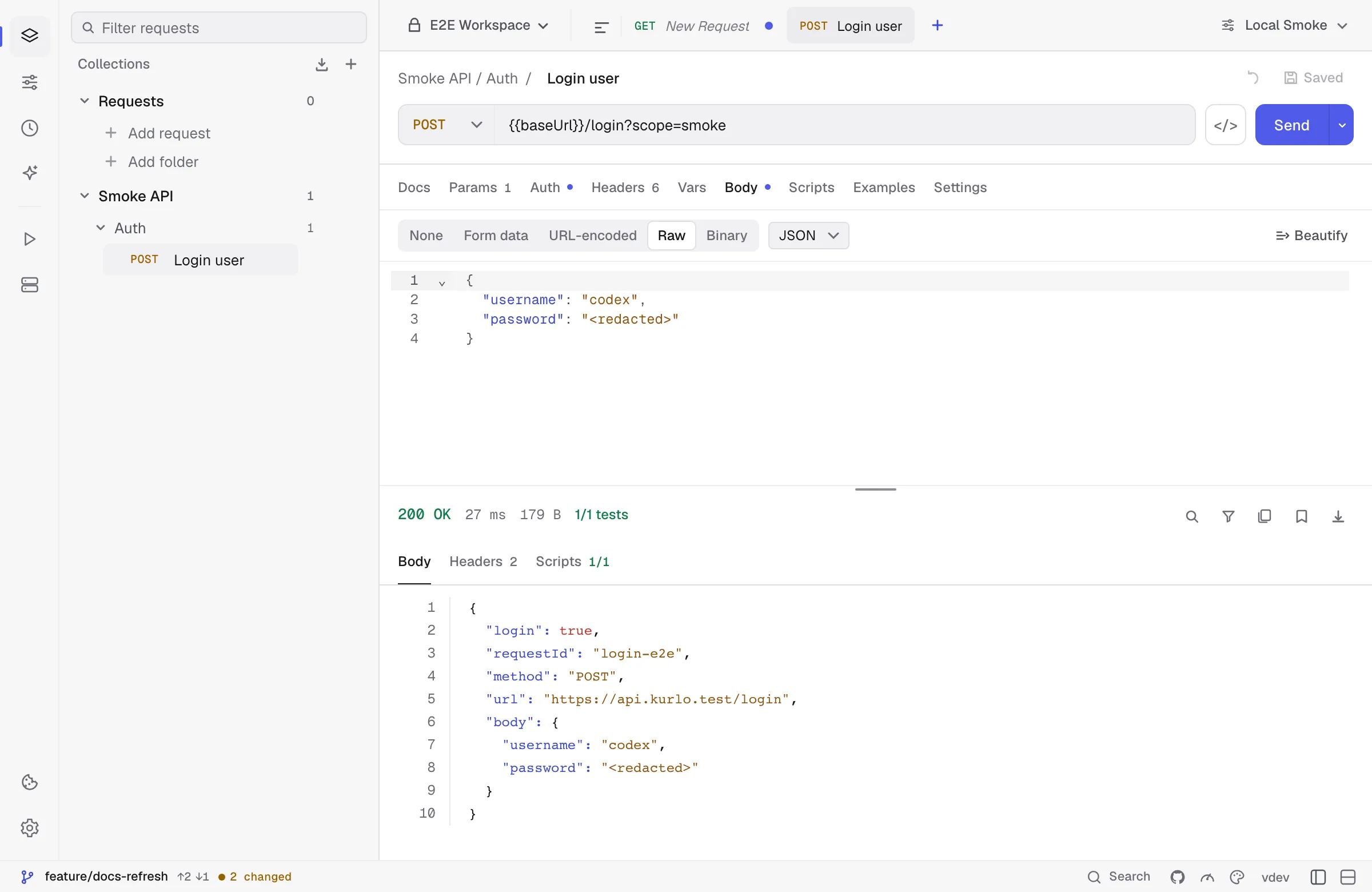
The response panel shows the JSON body with syntax highlighting, response headers, timing, and size.

The URL bar is always one line high. A URL longer than the bar scrolls sideways as you type or move the cursor with the arrow keys, Home and End. Swipe sideways on the trackpad or turn the mouse wheel over the URL to see the rest of it without moving the cursor. The bar shows the start of the URL again when you click elsewhere.
Tip: you can paste a
curl ...command into the URL field — Kurlo will parse method, headers, params, and body automatically.
Bulk edit
Section titled “Bulk edit”Params, Headers, and the form body types each have a Bulk edit toggle that swaps the table for its text form — one key:value per line, with // in front of a line to disable it:
Content-Type:application/jsonAuthorization:Bearer {{token}}//X-Debug:1It is the quickest way to paste a block of headers from somewhere else, or to add and reorder a dozen rows at once. Switching back rebuilds the table. Descriptions and attached files stay with their key, so a round trip through bulk edit does not lose them.
3. Save it to a collection
Section titled “3. Save it to a collection”- In the Collections sidebar, click New collection (
+) and name itExamples. - Return to the request tab and name the request
Get with query. - Click Save (or press
Cmd/Ctrl S). In Save request, open the collection list, selectExamples, and click Save.
The request now lives in the sidebar tree. Drag it to reorder it or move it to another folder in the same collection.
4. Parameterize with an environment
Section titled “4. Parameterize with an environment”Hard-coded URLs don’t survive across staging and prod. Replace the host with a variable:
- Open Environments in the activity rail and click New environment (
+) to createLocal. - Add
baseUrl = https://httpbin.org. In manual-save mode, click Save in the environment editor. - Select
Localfrom the environment switcher if it is not already active. - Edit the request URL to
{{baseUrl}}/get?lang=go&runtime=wails. - Send again — same result, but now portable.
See the environments guide for active environments, collection variables, and script-created values.
Use the Headers tab for API-specific metadata such as trace IDs, content negotiation, or custom client headers:
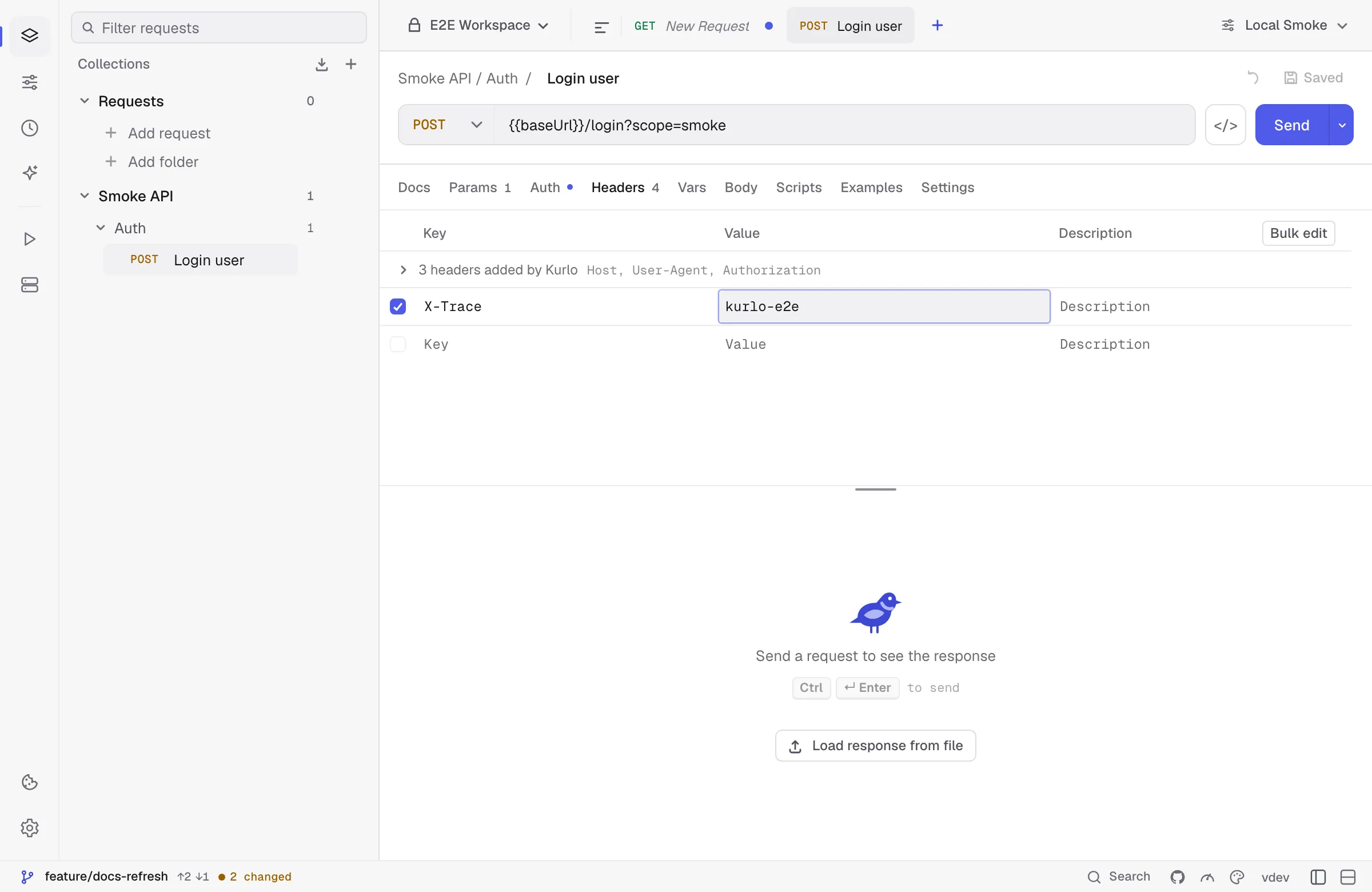
Host works here: set it to reach a virtual host or a service behind a load balancer, and the connection still goes to the URL’s address. A handful of others — Content-Length, Transfer-Encoding, Connection, Upgrade, Keep-Alive, TE, Trailer, and the Proxy-* pair — control how the request is framed on the connection, so Kurlo sets them itself and does not send yours. When you have one enabled, the response panel says which ones were left off rather than letting you wonder why the server ignored them.
5. Assert with a test script
Section titled “5. Assert with a test script”Open the Scripts tab on the request and paste:
pm.test("status is 200", () => pm.response.to.have.status(200))
const body = pm.response.json()pm.test("query is echoed back", () => {  pm.expect(body.args.lang).to.equal("go")})
Send the request again. Your tests show green in the response Scripts panel.
Next steps
Section titled “Next steps”- Configure auth — Bearer, OAuth2, AWS SigV4, etc.
- Import an existing collection.
- Full scripting API.