
Updates
“No compatible update package is available for this device yet”
Section titled ““No compatible update package is available for this device yet””This error means the auto-updater couldn’t find a binary for your platform in the latest release. Either:
- A new platform was added in the latest release and your old build doesn’t know about it (unlikely),
- Or the release was partial — e.g. the maintainer published a macOS-only patch release. Wait for the next full release.
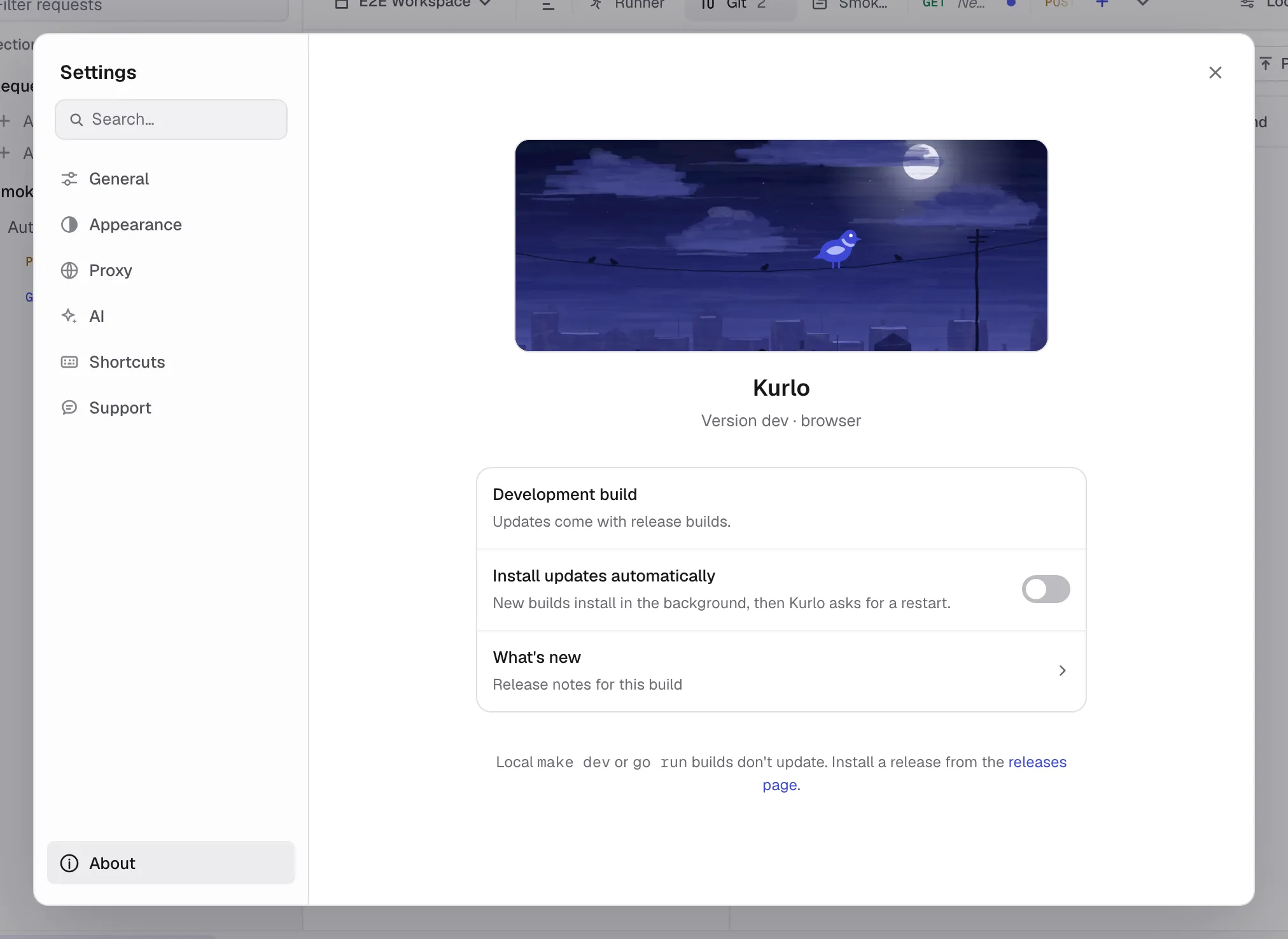
Updates aren’t available in development builds
Section titled “Updates aren’t available in development builds”If you’re running a make dev / go run build, Settings → About says Development build and explains why, instead of offering a check. This is intentional — there’s no released version newer than your local source tree. Install a release build to receive updates.
“The downloaded update could not be verified”
Section titled ““The downloaded update could not be verified””The downloaded binary’s SHA-256 or minisign signature didn’t match what latest.json claimed. Causes:
- Network interruption during download — try again.
- Antivirus modified the binary in transit — temporarily allowlist the Kurlo update cache.
- Compromised release channel — file a security issue immediately (SECURITY.md).
Linux: “Kurlo cannot replace its AppImage file in this folder”
Section titled “Linux: “Kurlo cannot replace its AppImage file in this folder””Kurlo updates an AppImage by replacing the .AppImage file it was started from, and the folder that holds it is read-only for your user, for example /opt. Move the AppImage to a folder you own, such as ~/Applications, and install the update again. AppImages from Kurlo 2.2.3 and earlier cannot update themselves at all: download 2.2.4 or later from the download page once.
Update applied but Kurlo didn’t restart
Section titled “Update applied but Kurlo didn’t restart”Click Restart now in Settings → About. If that doesn’t work, quit Kurlo manually and reopen it — the new binary is already in place.